CAD/CAM Software for CNC Router: Features, Compatibility, and How to Choose
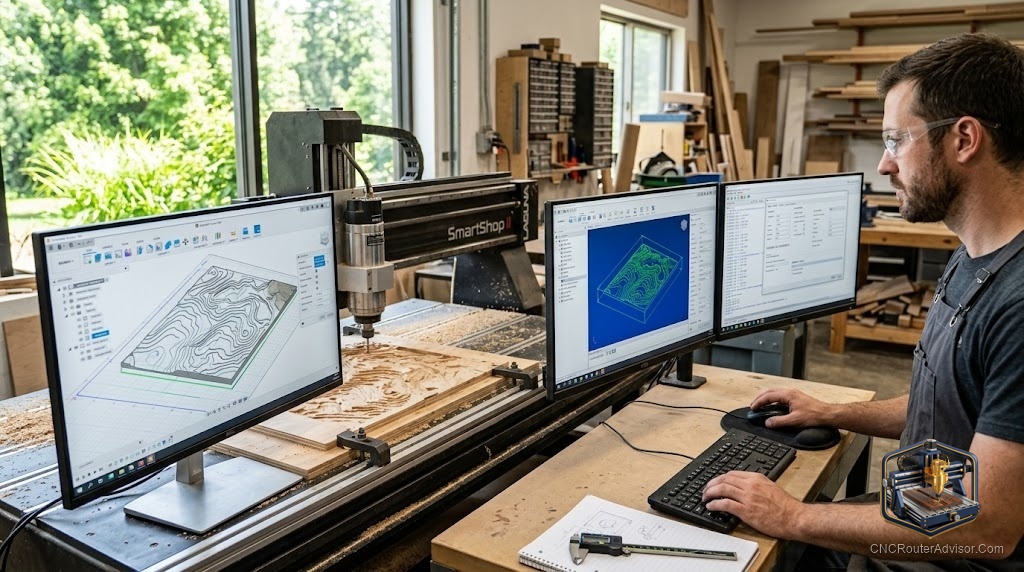
A CNC router is only as capable as the software that drives it. The machine cuts, but it is CAD/CAM software that turns your idea into a design and then into the toolpaths the machine follows. Choosing the right software is as important as choosing the machine, and getting it wrong means fighting your tools instead of making things. With options ranging from free beginner programs to professional suites, the key is matching the software to your work, your machine, and your skill level. This guide explains what CAD and CAM do, the features that matter, and how to choose.
Software is the bridge between idea and cut, so the useful approach is to understand the CAD and CAM stages, the features that matter, and how to match a program to your needs.
CAD/CAM software for a CNC router covers two stages: CAD (computer-aided design) creates the 2D or 3D design, and CAM (computer-aided manufacturing) converts that design into toolpaths and G-code the machine runs. Some programs combine both. Key features to compare are 2D and 3D design capability, toolpath types (profiling, pocketing, drilling, V-carving, 3D carving), a tool library and feeds-and-speeds handling, simulation to preview cuts, and the post-processor that outputs code for your specific machine. Compatibility is essential: the software must post-process to your machine’s controller (many hobby machines use GRBL). Popular options range from beginner-friendly free tools (such as Carbide Create and Easel) to capable mid-range and professional suites (such as Vectric VCarve and Aspire, Autodesk Fusion, and Mastercam). Choose by matching design needs, toolpath types, machine compatibility, budget, and learning curve to your work.
Match the software to your design needs, toolpaths, machine control, and skill level; capability you cannot use, or that will not post to your machine, is wasted.
CAD versus CAM: two stages
Understanding the two stages clarifies what you need:
- CAD (computer-aided design): where you create the design, 2D vectors for profiling and engraving, or 3D models for carving. Good CAD lets you draw, import, and edit the shapes you want to cut.
- CAM (computer-aided manufacturing): where you assign toolpaths to the design (which bit, what strategy, what depth) and generate the G-code the machine runs. CAM decides how the design is cut.
Some programs do only CAD, some only CAM, and many combine both. For a smooth workflow, most router users want an integrated CAD/CAM program or a compatible pair.
Features that matter
Design capability (2D and 3D). Confirm the software handles the design you need: 2D vectors for signs and profiling, or full 3D modeling and carving if you make reliefs and sculpted parts.
Toolpath types. Look for the strategies your work needs: profiling (cutting outlines), pocketing (clearing areas), drilling, V-carving (for signs and lettering), and 3D carving. More toolpath types mean more capability.
Tool library and feeds/speeds. A good tool library stores your bits and their feeds and speeds, making toolpath setup faster and more consistent.
Simulation. Toolpath simulation previews the cut before you run it, catching errors, collisions, and mistakes before they ruin material or break bits.
Post-processor. The post-processor converts toolpaths into G-code for your specific machine and controller. This is the compatibility linchpin, discussed below.
Ease of use and learning curve. Match the program’s complexity to your skill. Beginner tools get you cutting sooner; professional suites offer power at the cost of a steeper learning curve.
Compatibility: the non-negotiable
The software must output code your machine can run:
- Post-processor for your control: confirm the program has a post-processor for your controller. Many hobby machines run GRBL, so GRBL compatibility is common and important; other machines use different controls.
- File import/export: check it imports the file types you use (such as SVG, DXF, or STL) and exports the G-code your machine expects.
- Operating system: confirm it runs on your computer’s OS, and whether it is desktop or cloud-based.
Even the best software is useless if it cannot post to your machine, so verify compatibility before committing.
Popular options by level
- Beginner / free: Carbide Create and Easel are approachable, often free, and good for 2D work and getting started. Great for learning.
- Mid-range / prosumer: Vectric VCarve is widely used for signs and 2.5D work; Aspire adds full 3D. Popular for their balance of power and usability.
- Professional / 3D and production: Autodesk Fusion offers integrated CAD/CAM including 3D; Mastercam and similar suites serve professional production. More power, steeper learning curve.
Match the level to your work rather than buying more capability than you will use.
The verdict
CAD/CAM software is what turns your idea into a design and then into the toolpaths your CNC router follows, making it as important as the machine itself. Understand the two stages, CAD for designing and CAM for generating toolpaths and G-code, and compare the features that matter: 2D and 3D design capability, the toolpath types your work needs, a tool library with feeds and speeds, simulation, and above all a post-processor for your specific machine and controller. Match the program to your design needs, toolpaths, machine compatibility, budget, and skill level, choosing from beginner-friendly free tools up to professional suites. Get the fit right, and the software helps you make things instead of fighting you.
Three things to take with you:
- CAD creates the design and CAM turns it into toolpaths and G-code; most router users want an integrated CAD/CAM program or a compatible pair.
- Compare design capability, toolpath types, tool library and feeds/speeds, simulation, and ease of use, matched to the work you actually do.
- Compatibility is non-negotiable: confirm the software has a post-processor for your controller (often GRBL on hobby machines) and imports and exports the file types you need.
FAQ
What is CAD/CAM software for a CNC router? It is software for two stages: CAD (computer-aided design) creates the 2D or 3D design, and CAM (computer-aided manufacturing) converts that design into toolpaths and the G-code the machine runs. Some programs combine both, giving a smooth design-to-cut workflow for router users.
What is the difference between CAD and CAM? CAD is where you create the design, drawing or importing the shapes you want to cut. CAM is where you assign toolpaths (which bit, what strategy, what depth) and generate the G-code that drives the machine. CAD decides what to cut; CAM decides how it is cut.
What CAD/CAM software is best for beginners? Approachable, often free tools like Carbide Create and Easel are good for learning and 2D work, getting you cutting sooner. As your needs grow, mid-range programs like Vectric VCarve (and Aspire for 3D) or Autodesk Fusion offer more capability. Match the level to your skill and work.
Do I need separate CAD and CAM programs? Not necessarily. Many programs combine CAD and CAM for a smooth workflow, which most router users prefer. You can also pair a dedicated CAD program with a separate CAM program if you need specific capabilities, as long as the files transfer cleanly between them.
Will any CAD/CAM software work with my CNC router? Only if it has a post-processor for your machine’s controller. Many hobby machines run GRBL, so GRBL compatibility is common and important; other machines use different controls. Always confirm the software can post-process to your specific controller and export the G-code your machine expects before choosing it.
What is a post-processor? A post-processor converts the toolpaths you create in CAM into G-code formatted for your specific machine and controller. It is the compatibility linchpin: without a suitable post-processor, even excellent software cannot drive your machine, so confirm one exists for your controller before committing to a program.
References
- Wikipedia, CAD/CAM and computer-aided manufacturing: https://en.wikipedia.org/wiki/Computer-aided_manufacturing
- CNC Cookbook, CAD/CAM software overview: https://www.cnccookbook.com