Software CNC Router: The Three Layers You Need and How to Choose Each One
A CNC router without the right software does nothing, yet software is the part of the setup most buyers research least before purchasing the machine. This matters because the software stack for a CNC router has three distinct layers, each with its own tools and choices, and understanding what each layer does and what your options are determines how quickly you go from machine on the bench to finished parts. It also determines your ongoing cost, since some layers are free and some are not.
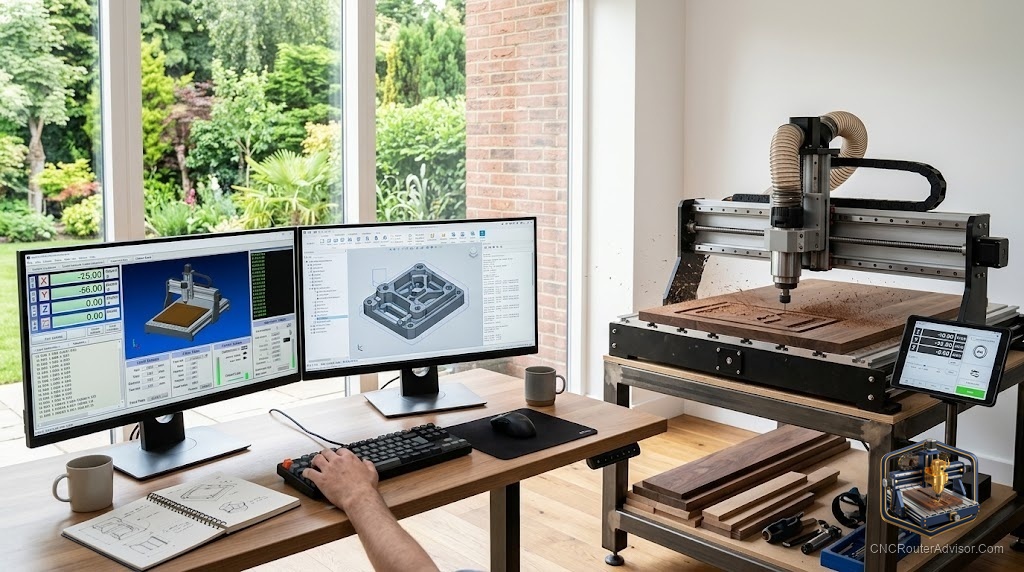
Software for a CNC router consists of three layers: CAD software to create or import your design, CAM software to generate the toolpath and G-code the machine will follow, and sender or machine control software to stream that G-code to the controller and operate the machine. Understanding these three layers and how they connect is the foundation of any CNC software setup.
Here is the direct guidance: most hobbyists and small-shop users can build a capable CNC software setup using free or low-cost tools at all three layers, and many popular options are well-documented and actively supported. Confirm that your machine’s controller works with your chosen sender before buying, since compatibility varies. The sections below cover each layer, the main options, and how to choose.
Layer 1: CAD, making or importing the design
CAD software is where the design originates, whether drawn from scratch or imported from another source. Many CNC users skip complex CAD and work from SVG files, design templates, or built-in tools in their CAM software. For those who need to design parts, Autodesk Fusion (formerly Fusion 360) and Onshape offer full parametric CAD at low or no cost for hobbyists. For signmaking and 2D vector work, Inkscape (free) handles most needs. The main principle is that your design file must end up in a format your CAM software accepts, typically SVG, DXF, or a native 3D format.
Layer 2: CAM, generating the toolpath
CAM software is where the cutting decisions are made: it converts the design into a toolpath and generates G-code the machine follows. This layer is where you set bit type, depth of cut, feeds and speeds, and cutting order. Autodesk Fusion includes capable CAM at the hobby level. Carbide Create (free from Carbide 3D) suits beginner and mid-level 2D and V-carving work and pairs directly with Carbide Motion for machine control. Vectric products (VCarve, Aspire) are the professional standard for signmaking and furniture, with a cost reflecting that. For most beginners, free or entry-level CAM is sufficient until your work outgrows it.
Layer 3: sender and machine control
The sender streams G-code to the controller in real time and lets you home the machine, zero axes, jog the spindle, and start and stop jobs. For GRBL-based machines, which cover most hobby routers, popular senders include UGS (Universal G-Code Sender, free), Candle (free), and the manufacturer’s included software. Some machines use offline controllers that eliminate the need for a computer during the job entirely, which simplifies the workflow. Confirm your machine’s controller type and check that your chosen sender supports it before committing to either.
Choosing for your workflow
The right software matches your workflow: the design work you do, the machine you have, and the complexity of your projects. For beginners, free CAD, free CAM (Carbide Create or Fusion for machining), and a free GRBL sender is a complete, no-cost stack that handles most wood work. As complexity grows, a paid CAM tool pays for itself in saved time. Match the investment to the work rather than buying professional software for beginner projects.
For the machine that runs this software, see our guide to building a CNC wood router for how the software stack connects to the controller and motion system.
Final verdict
CNC router software comes in three layers, design (CAD), toolpath generation (CAM), and machine control (sender), and all three are needed to go from idea to finished part. Most hobbyists can cover all three with free or low-cost tools, and doing so without overbuying software is the sensible approach until your work demands more. Confirm sender-to-controller compatibility before buying, choose CAM that matches your project types, and start lean. Upgrade individual layers as your work outgrows them rather than paying for a professional stack you will not use.
FAQ
What software does a CNC router need? Three layers: CAD for design, CAM for toolpath and G-code generation, and sender software to stream G-code to the machine and control the job. All three are needed to cut a part.
Is CNC router software free? Often yes, at the hobby level. Free options exist at all three layers, including Inkscape for CAD, Carbide Create or Fusion for CAM, and UGS or Candle for sending. Paid tools add features for professional work.
What is CAM software for CNC? CAM (computer-aided manufacturing) software converts a design into a toolpath and generates the G-code the machine follows, including bit selection, depth of cut, feeds and speeds, and cutting order.
What is a GRBL controller? GRBL is open-source motion controller firmware used in most hobby CNC routers. It runs on an Arduino-class board and is compatible with many free senders including UGS and Candle.
Do I need Vectric VCarve? Not to start. VCarve is an excellent professional tool for signmaking and furniture, but free or entry-level CAM covers most beginner and intermediate work. Buy it when your projects outgrow the free tools.
What if my machine has an offline controller? An offline controller runs the job from a file (SD card or USB) without needing a connected computer during the cut, which simplifies the workflow. You still need CAD and CAM to generate the G-code file.
References
- GRBL project documentation, controller and sender reference: https://github.com/gnea/grbl/wiki
- Autodesk, Fusion CAD and CAM documentation: https://www.autodesk.com
- Carbide 3D, Carbide Create and Carbide Motion documentation: https://carbide3d.com