Easel CNC Router Software Guide: Features, Compatibility, Setup, and Pricing
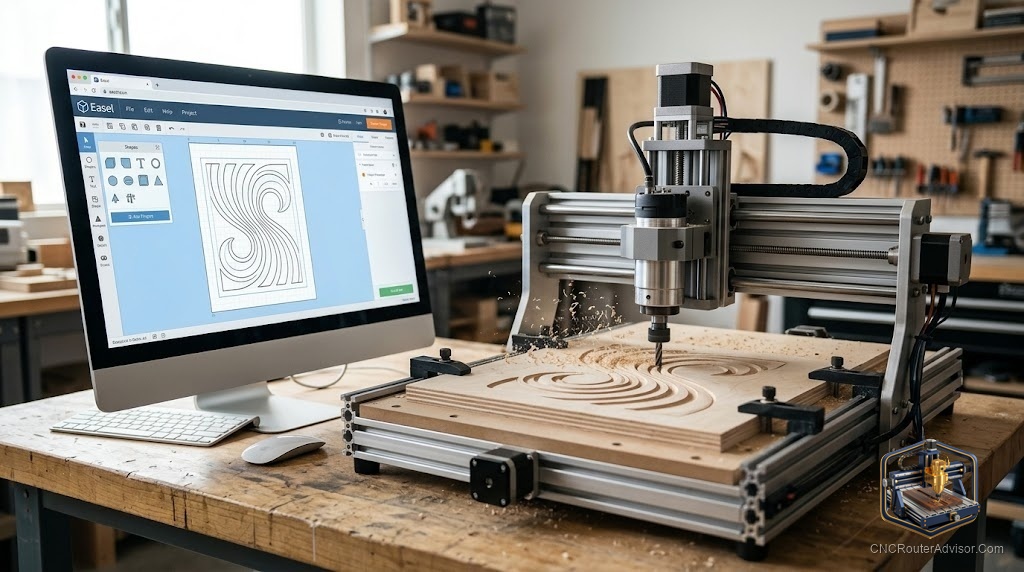
Most CNC software greets a beginner with a wall of menus, toolpath strategies, and post-processor settings that feel like a second job to learn. Easel took the opposite approach. It runs in a browser, puts design and toolpaths on one screen, and gets a first cut happening in an afternoon rather than a weekend. That simplicity is exactly why it shows up in so many beginners’ first projects, and also why some makers eventually want more. Knowing where Easel shines and where it stops is the key to using it well.
Easel is free, browser-based CAD/CAM software from Inventables that combines design, toolpath generation, and machine control in one simple interface for CNC routers. It is built for approachability, letting beginners design a project, generate toolpaths, and send the job without juggling multiple programs. Understanding its features, what machines it works with, how to set it up, and where its limits lie helps you decide whether it fits your workflow or whether you will outgrow it.
Short answer: Easel is a free, browser-based all-in-one tool that handles design, toolpaths, and sending for CNC routers, prized for its simplicity. It works well with Inventables machines like X-Carve and with many other GRBL-based routers, and it excels at 2D and 2.5D work such as signs, cutouts, and simple carving. Its limits show in advanced 3D and complex strategies, where dedicated CAM does more. For beginners and 2.5D projects, it is one of the easiest ways to start.
What Easel does
Easel folds the whole basic workflow into one browser screen:
- Design (CAD). Create shapes and text, or import SVG artwork, and lay out your project visually.
- Toolpaths (CAM). Set the bit, material, and cut settings, and Easel generates the toolpaths automatically, with a built-in materials and bit guide that suggests settings.
- Control (sending). Connect the machine and send the job directly, no separate sender needed.
- Simulation. Preview the cut before running it to catch mistakes.
Because it lives in a browser, there is nothing heavy to install, and projects save to your account.
Compatibility
Easel is made by Inventables, so it works directly with their machines like the X-Carve and Carvey. It also drives many other GRBL-based CNC routers, which covers a large share of hobby and desktop machines. Before committing, confirm your specific machine and controller are supported, since compatibility centers on GRBL-style control. For unsupported controllers, you may need different software.
Setup in outline
Getting started is refreshingly quick:
- Create an account and open Easel in your browser.
- Set up your machine by selecting it or entering its work area and settings.
- Connect the machine, typically over USB, using the small local helper if required.
- Design or import your project.
- Choose material and bit, letting the built-in guide suggest speeds and feeds.
- Simulate, then carve, zeroing the machine and sending the job.
The short path from opening the software to a first cut is Easel’s biggest strength.
Where Easel shines, and where it stops
Strengths:
- Genuinely beginner-friendly, with the gentlest learning curve of the common tools.
- All-in-one, removing the need to stitch design, CAM, and sender together.
- Strong at 2D and 2.5D: signs, lettering, cutouts, inlays, and simple pockets.
- Built-in material and bit suggestions that shorten the trial-and-error phase.
Limits:
- 3D relief and complex toolpath strategies are limited compared with dedicated CAM like Vectric or Fusion 360.
- Advanced users may find fewer fine controls over toolpaths.
- It relies on a browser and account, which some prefer over a purely local tool and some do not.
Many makers start on Easel and later add a dedicated CAM package as their projects grow, while still using Easel for quick jobs.
Pricing
Easel’s core is free to use, which is a large part of its appeal for beginners. Inventables also offers a paid tier that adds features for users who want more, so if you need advanced capabilities, check the current paid options. For most people starting out, the free version covers real projects without spending anything.
The bottom line
Easel earns its popularity by making the first cut easy: a free, browser-based tool that unites design, toolpaths, and sending in one approachable screen. It fits beginners and 2D or 2.5D work beautifully, pairs naturally with X-Carve and many GRBL machines, and gets you carving fast. Its ceiling is advanced 3D and complex strategies, where dedicated CAM does more. Start with Easel to learn and produce real projects for free, then add heavier software only when your work actually demands it.
FAQ
Is Easel free? The core of Easel is free to use, which makes it popular with beginners. Inventables also offers a paid tier with extra features for those who need more.
What machines work with Easel? Inventables machines like X-Carve and Carvey work smoothly, and Easel also drives many GRBL-based CNC routers. Confirm your controller is supported.
Is Easel good for beginners? Yes. It has the gentlest learning curve of the common tools, combines design, toolpaths, and sending in one screen, and suggests speeds and feeds.
Can Easel do 3D carving? It handles 2D and 2.5D well, but 3D relief and complex strategies are limited compared to dedicated CAM like Vectric or Fusion 360.
Do I need to install Easel? No. Easel runs in a browser, though it may use a small local helper to connect to your machine over USB. Projects save to your account.
What can I make with Easel? Signs, lettering, cutouts, inlays, simple pockets, and light carving, the kind of 2D and 2.5D projects most beginners start with.
Will I outgrow Easel? Maybe, if you move into detailed 3D or advanced toolpaths. Many makers keep Easel for quick jobs and add a dedicated CAM package as projects grow.
References
- GuideFlow, CNC software overview: https://www.guideflow.com/blog/cnc-software
- WorkshopCalc, best CNC routers guide: https://workshopcalc.com/guides/best-cnc-routers