
3D Files for CNC Router: Formats, Sources, and What to Check Before You Cut
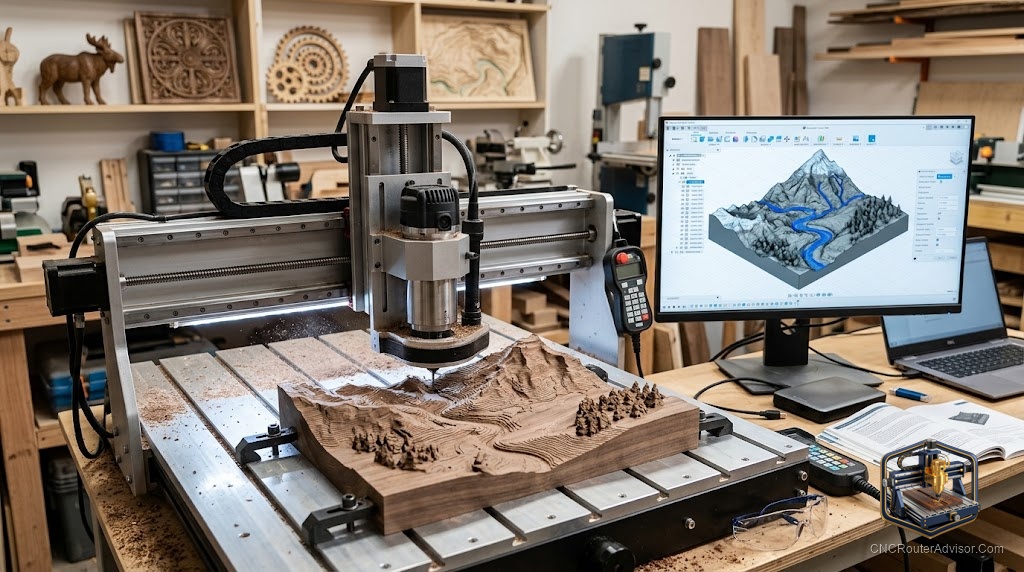
Something no one tells you when you start: downloading a CNC file and successfully cutting it are two different events, sometimes with a frustrating gap between them. The file might be the wrong format, the wrong size, or designed for 3D printing with undercuts a CNC router can’t reach. Knowing what to look for before you download saves a lot of material.
3D files for a CNC router are digital files containing geometry data that your CAM software imports to generate cutting toolpaths. The file format determines which software can open it and how it represents the geometry. For 3D carved work, STL is the standard. For 2D profiles and signs, DXF and SVG are the right formats.
The direct answer: for 3D CNC relief carving, use STL files from Cults3D or Etsy (search “CNC relief STL”). For 2D sign and profile work, use DXF or SVG files from Etsy. Free sources like Thingiverse are large but require file evaluation for CNC suitability before use.
File Format Guide
STL
The standard 3D mesh format for CNC relief work. Represents surfaces as triangular facets. Imported by Aspire, Carveco, Fusion 360, Carbide Create Pro, and every other major CAM tool.
Note: STL files carry no scale metadata. Verify and set dimensions after importing in CAM software.
DXF
Standard 2D CAD vector format. Profiles, pockets, V-carving, furniture templates. Used for any flat cutting or engraving work.
SVG
Web-standard vector format. Simpler than DXF, widely supported by hobbyist CAM tools. Many Etsy sign files are delivered as SVG.
OBJ
Alternative 3D mesh format. Functionally similar to STL for CNC purposes. Some scanners default to OBJ export; Aspire and Fusion 360 import it.
Best Sources
Cults3D: Designer marketplace with strong CNC woodworking section. Paid but reasonably priced. Many files are CNC-specific with tested settings included.
Etsy: The largest commercial source for CNC-specific files. Sellers target CNC users and often include recommended bit sizes and depth settings. Read reviews from buyers who actually cut the file.
Thingiverse: Free, large, but mixed. Files are designed primarily for 3D printing. Check for undercuts and verify CNC suitability before using.
Printables: Similar to Thingiverse. Same caveats apply.
STLFinder: Aggregates free STL files from multiple sources. Useful for broad subject searches.
How to Evaluate a File Before Cutting
- Scale check. Import into CAM and verify dimensions match your intended output size.
- Relief depth. Maximum Z height must fit within your machine’s Z travel.
- Undercut check. Load the STL in Meshmixer and use the Analysis tools to identify overhangs. Any geometry facing back toward the table is uncut on a 3-axis machine.
- Mesh quality. Run the Inspector tool in Meshmixer. Non-manifold geometry causes CAM failures.
- Review history. If available, check reviews from buyers who cut the file.
Verdict
Cults3D and Etsy are the most reliable paid sources for CNC-ready 3D files. Thingiverse is large and free but requires file evaluation. Always verify relief depth, dimensions, and absence of undercuts before committing a workpiece.
- STL for 3D carved surfaces; DXF and SVG for 2D work
- Cults3D and Etsy: best sources for CNC-purpose 3D files
- Thingiverse requires evaluation before use
- Check scale, depth, undercuts, and mesh quality before cutting
FAQ
Where do I find free 3D CNC files? Thingiverse, Printables, and STLFinder. Verify CNC suitability: check for undercuts and confirm the design is machinable on a 3-axis machine.
What is an undercut in a CNC file? Geometry that faces back toward the table. A 3-axis CNC cannot reach undercuts; they appear as flat spots on the finished carving.
Can I use Etsy files commercially? Depends on the seller’s license terms. Many Etsy CNC file listings include commercial use rights; check the specific listing before selling products made from the file.
How do I repair a bad STL file? Open in Meshmixer (free). Use Analysis > Inspector to find and auto-repair holes and non-manifold edges.
References
- Cults3D: cults3d.com
- Thingiverse: thingiverse.com
- Meshmixer: meshmixer.com